Body
Using the BioRender Connector in Claude
Integrate BioRender’s scientific illustrations directly into AI-powered conversations to streamline research, figure creation, and scientific communication.
The BioRender MCP connector enables you to search BioRender’s library of icons and templates using natural language prompts through compatible AI assistants. Use it to quickly find and reference professional scientific illustrations for use in presentations, publications, and more.
How to use the BioRender MCP connector with Claude
- Open your AI assistant’s settings and navigate to "Connectors" or "Integrations".
- Click to add a new MCP server connection.
- Enter the BioRender MCP server URL: "https://mcp.services.biorender.com/mcp"
- Save the configuration.
- In your AI assistant, select "Connect to BioRender".
- Log in using your BioRender credentials.
- Approve the requested permissions.
- Once authenticated, you’ll be redirected back to your AI assistant.
- In an active conversation, enable the BioRender connector under "Tools" or "Connectors".
-
Use natural language prompts to search for icons and templates. Examples include:
"Find icons for CAR-T cell therapy mechanisms."
"Show me templates for protein aggregation pathways."
"Search for SARS-CoV-2 viral structure illustrations."
"Get icons related to CRISPR gene editing."
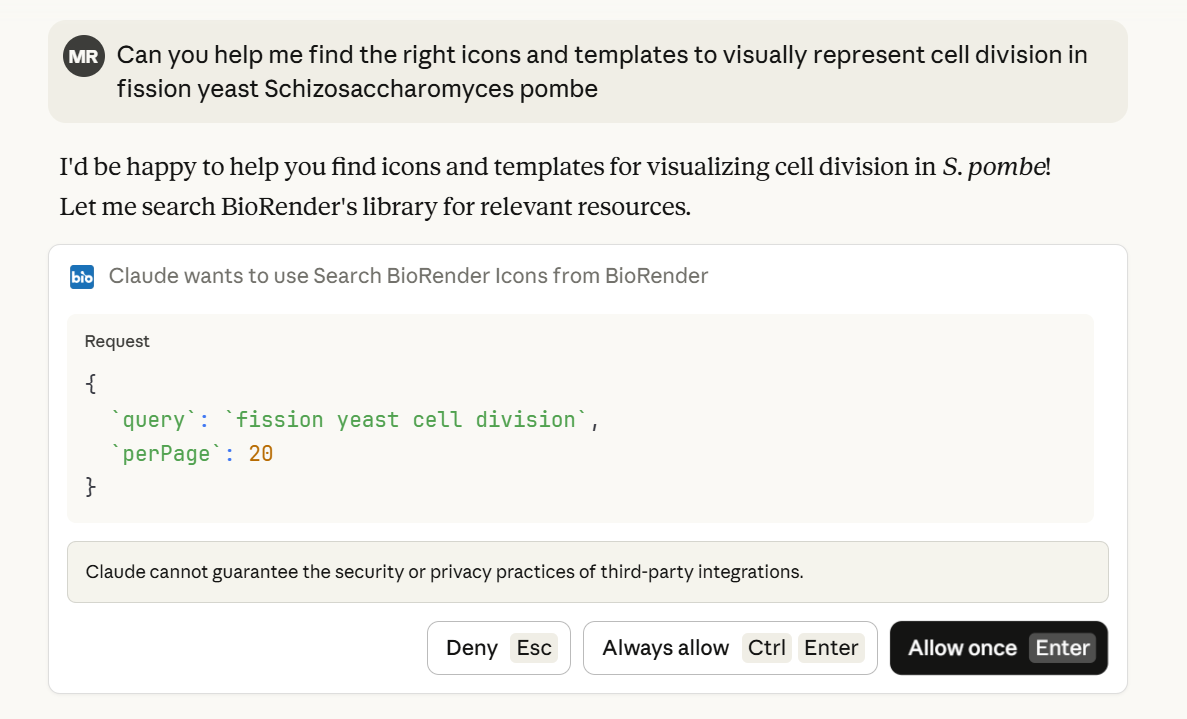
11. Review the search results. Note that icons will appear with titles, while templates will include links.
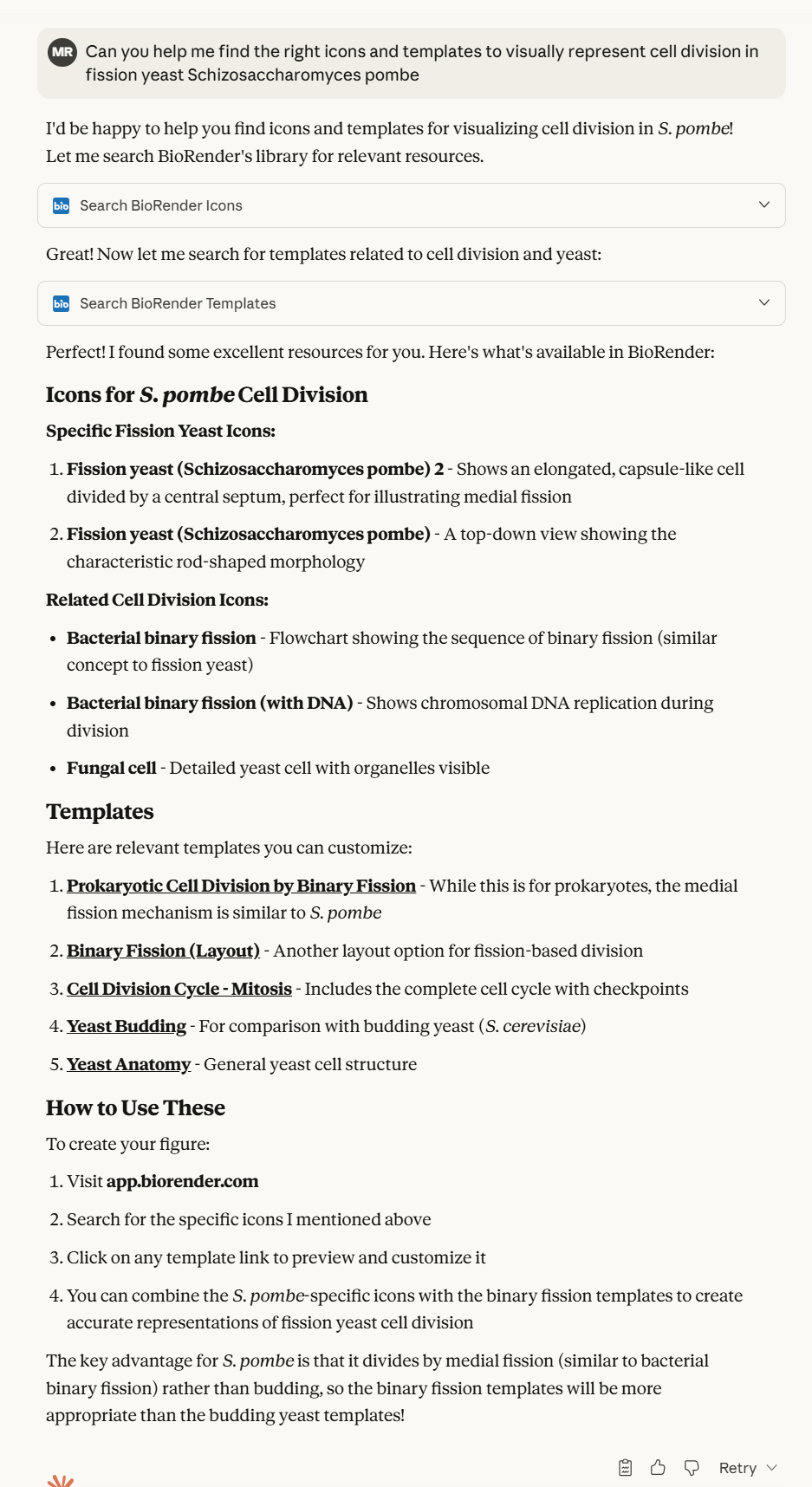
12. Click any template result to open it directly in BioRender for editing and use.