Pitt Digital publishes several data sensitivity labels to help protect University information. Powered by Microsoft Purview, these labels are available across Microsoft 365 applications like Outlook, Word, and Excel, and can be applied to emails, documents, Teams, SharePoint sites, and groups.
Applying sensitivity labels to your data helps to quickly identify high-risk documents and messages. Labels also help to secure content from unauthorized disclosure, modification, or duplication by restricting permissions to labeled content, applying encryption, and other data protections.
This guide provides a quick summary of the the available sensitivity labels provided by Pitt Digital and the protections they apply to various types of content.
Available Sensitivity Labels
The following sensitivity labels are published for use by Pitt Digital. Some teams may have additional labels not covered by this guide. Please see Pitt Digital's Data Risk Classification and Compliance Operating Standard for more information.
| Label Name |
Description |
|
Private - Moderate Risk
|
Intended for use with moderate risk Private Data.
Documents and emails with this label are automatically encrypted and can be securely shared with both Pitt and non-Pitt collaborators. Recipients may be required to verify their email address before accessing the content.
|
|
Restricted - High Risk
|
Intended for use with high risk Restricted Data.
Documents and emails with this label are automatically encrypted and can be securely shared with both Pitt and non-Pitt collaborators. Recipients may be required to verify their email address before accessing the content.
Recipients can not Copy or Forward the contents of emails and documents with this label.
|
|
Pitt Read-Only
|
Intended for highly confidential Pitt use only.
Documents and emails with this label are automatically encrypted and can be read only by individuals with a Pitt email address. Recipients and collaborators also can not Edit, Forward, Print or otherwise modify or duplicate the content.
Non-Pitt recipients and collaborators will not be able to read or access content with this label.
|
Applying a Sensitivity Label
The sensitivity labels discussed in this article can be applied by clicking on the Sensitivity button in your Microsoft 365 application, expanding University of Pittsburgh, and then selecting the desired label. Hovering your mouse over the label will provide a brief description.

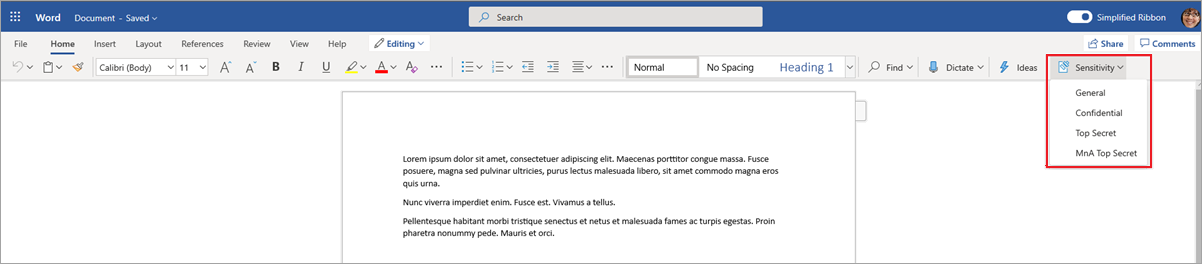
The exact method for applying sensitivity labels depends upon the application. Please see Microsoft's documentation to Apply sensitivity labels to your files for more detailed instructions and guidance.
Accessing Encrypted Documents and Emails
Documents and email protected by a sensitivity labels will require recipients and collaborators to verify their identity before accessing the shared content.
For other Pitt users, this means simply signing in to Microsoft 365 with your Pitt Passport user name and password. External (non-Pitt) users have the option to sign in with their organization's user name or password, a commercial email provider, or choose to receive a one-time pass code sent to their email address.
Please see Microsoft's documentation on sharing encrypted documents with someone outside of your organization for more details.
Settings and Permissions
The exact data protections and permissions applied by adding a sensitivity label varies on the application and type of content. The tables below are intended to help you quickly understand the permissions applied by each label and how they differ from each other.
Email & Documents
The following controls and permissions are applied when a sensitivity label is added to a Microsoft Outlook email message or Microsoft 365 document, including Word, Excel, and PowerPoint.
|
|
Private
|
Restricted
|
Pitt Read-Only
|
| Encryption |
Yes |
Yes |
Yes |
| Offline Access |
Yes, for 30 days |
Yes, for 7 days |
Yes, for 7 days |
| Read |
Yes |
Yes |
Yes, with Pitt email address only |
| Non-Pitt Recipients Read |
Yes, with email verification |
Yes, with email verification |
No |
| Copy |
Yes |
No |
No |
| Forward |
Yes |
No |
No |
| Edit |
Yes |
Yes |
No |
| Print |
Yes |
Yes |
No |
| Reply |
Yes |
Yes |
No |
| Reply All |
Yes |
Yes |
No |
| Download / Save To Device |
Yes |
Yes |
No |
Teams, Groups, & Sites
The following controls and permissions are applied when a sensitivity label is added to a Team, Microsoft 365 group, or SharePoint site.
| |
Private |
Restricted |
| Who can access the group or team? |
Only owners and members |
Only owners and members |
|
Who can add members?
|
Only owners |
Only owners |
| Can invite non-Pitt users to join the team / site? |
Yes (requires guest registration) |
Yes (requires guest registration) |
| Can share team / site content with non-Pitt users? |
Yes (with email verification) |
Yes (with email verification) |
| Teams shared channels |
Private teams only |
Internal (Pitt) teams only |
| Private teams discovery |
Yes |
No |